10 Best Docking Stations for Dual Monitors in 2026

Disclosure: As an Amazon Associate we earn from qualifying purchases.
Dell is the pick for users who want up to four high-res displays, 100W power, and flexible management in one office-ready dock.
A single dock can change how your desk works, especially when you need space for two screens and still want room for accessories. Docking stations for dual monitors vary a lot in ports, power delivery, and display support, so the small details matter more than the headline count.
These picks suit different setups, from simple dual-screen use to heavier multitasking with more displays or extra ports.
Top Picks
Top 10 Docking Stations for Dual Monitors Review
Pros and cons are taken from each product's listing details.
Dell Pro Laptop Docking Station WD25
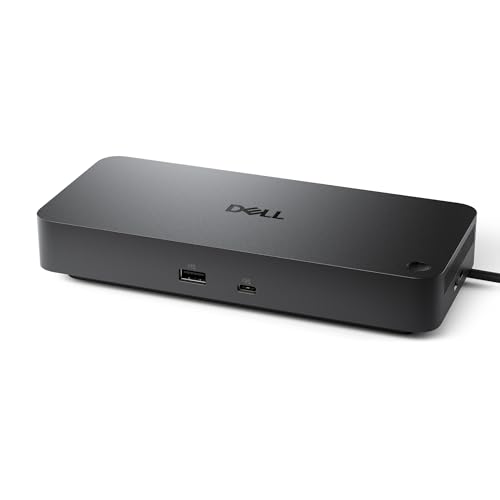
- Up to four high-res displays
- 100 W power delivery
- Ambidextrous USB-C cable
Dell’s WD25 is an office-ready dock that centers on broad compatibility and strong display support. It is described as delivering up to 100 W of power to newer Dell AI PCs and non-Dell PCs, while also supporting up to four high-res displays. The ambidextrous USB-C cable and robust connector add flexibility at the desk. It suits users who want a tidy, modern workstation with room to grow.
Dell also highlights manageability and sustainability, which can matter in shared or managed workspaces. If you want a polished dock for everyday office work and multiple screens, this one is the most versatile fit.
Anker Laptop Docking Station Dual Monitor

- Two HDMI ports
- Ethernet included
- SD/TF card reader
- Wide system support
- Pass-through charging up to 85 W
- For macOS, the display on both external monitors will be identical
Anker’s 8-in-1 hub keeps the footprint small while still covering the basics many dual-screen users want. It includes two HDMI ports, Ethernet, USB-A ports, and an SD/TF card reader, with pass-through charging up to 85 W. It works with USB-C, USB4, and Thunderbolt connections, which makes it a flexible match for many laptops.
The display section is the main reason to look closely here. Anker says two external monitors can run through the HDMI ports at 4K@30Hz, or one display can run at 4K@60Hz. For macOS, both external monitors mirror the same image, so it suits users who are fine with mirrored output and want a compact dock with plenty of extras.
Vicfluxion Docking Station Dual Monitor

- Two HDMI ports
- Three USB-A 3.0 ports
- Gigabit Ethernet
- 90 W laptop charging
- Power adapter not included
Vicfluxion packs a wide mix of connections into one dock, including two HDMI ports, gigabit Ethernet, three USB-A 3.0 ports, a USB-C port, and a 3.5 mm audio jack. It is described as supporting dual 4K HDMI output at 4K@60Hz, which makes it a solid match for a busy desk with several peripherals attached.
This dock also supports up to 100 W USB-C Power Delivery input and up to 90 W charging to the laptop. The listing notes that charging performance can vary by device and that some 65W laptops may show a slow-charger warning because the dock uses about 10 W to operate. It suits people who want a very connected workspace.
WAVLINK Displaylink Docking Station 3 Monitors for Mac M1-M5/Neo

- Three external monitors
- Six 10Gbps USB ports
- Gigabit Ethernet
- Includes 130W power adapter
- Requires DisplayLink driver for MacBook M1/M2/M3/M4/M5
WAVLINK is built for bigger screen setups, with support for up to three external monitors and output described as 4K 60Hz HDMI plus 2x 2K 60Hz HDMI/DP. It also brings six USB ports, all listed at 10Gbps, plus gigabit Ethernet. That makes it a fit for workspaces that rely on lots of peripherals and stable wired networking.
The dock comes with a 130W power adapter and supports 100W charging through the USB-C cable, so it can keep a laptop powered while running displays and devices. WAVLINK notes that MacBook M1 through M5 models require a DisplayLink driver and that USB-C must support video output. Choose it if your priority is a more expansive multi-monitor desk.
MOKiN Laptop Docking Station Dual Monitor 4K HDMI USB C Hub for Dell/HP/Mac

- 14-in-1 layout
- Two HDMI and two DP ports
- Screen-off button
- SD/TF card reader
- 100W charging port
- MacOS laptops only support SST mode
MOKiN offers a very full feature set, starting with 14-in-1 expansion and a mix of two HDMI ports, two DP ports, Ethernet, multiple USB-A and USB-C connections, and SD/microSD slots. It is described as supporting triple 4K and includes a screen-off button for quick privacy control. That combination works well for users who want a densely equipped desk dock.
The charging side is described as up to 100W input, with up to 87W to the laptop. MOKiN also says macOS laptops only support SST mode, so external displays will mirror the same image there. It suits users who want a feature-heavy dock and can work within the listed display limits.
Acer USB-C Docking Station Dual Monitor

- Aluminum body
- Built-in cable
- Lock button
- Dual 4K HDMI
- Aluminum alloy body
Acer’s dock combines dual 4K@60Hz HDMI support with a compact 9-in-1 layout. It includes three USB-A ports, one USB-C port, SD/MicroSD slots, and 100W PD charging with up to 90W to the laptop. The aluminum alloy body and built-in 0.65 ft cable give it a tidy desk presence.
Acer also adds a lock button, which is a useful touch for shared spaces or quick screen security. The listing says it works with full-featured USB-C ports that support display, charging, and data transfer, including Dell, Lenovo, and Surface devices. It suits users who want a cleaner, sturdier-looking dock with straightforward connectivity.
Plugable USB 3.0 Universal Laptop Docking Station

- Two HDMI outputs
- Gigabit Ethernet
- Six USB ports
- Hybrid USB 3.0 and USB-C cable
- 4K not supported
- Does not charge the host laptop
Plugable keeps the formula simple and useful, with two HDMI outputs, wired Gigabit Ethernet, audio jacks, and six USB ports. The hybrid USB 3.0 and USB-C cable makes it easy to connect to a host laptop, and the dock is aimed at everyday productivity use. It suits users who want a expansion hub for office tasks.
The display limits are clear: dual HDMI support goes up to 1920×1200 at 60Hz, and 4K is not supported. Plugable also says it does not charge the host laptop, so power still needs to come from elsewhere. Choose this one if you need a reliable dual-screen dock for basic work and do not need high-resolution output.
Docking Station Dual Monitor 4K HDMI 13-in-1 USB C Hub for Laptop MacBook

- Triple display support
- Ten-gigabit data transfer
- Two 100W USB-C ports
- Switching mode button
- On MacOS, the screens of external monitors are the same
- The dock occupies 13W power to work
It includes two 4K HDMI ports, DisplayPort, USB-C ports, several USB-A ports, Ethernet, and a 3.5 mm audio jack. The dock is described as plug and play, which keeps setup simple for compatible systems.
Its power setup supports up to 100W PD charging, with 87W available to the laptop after the dock’s own 13W use. LIONWEI also says Windows supports MST and SST, while MacOS can only extend one monitor in extend mode. It suits people who want a broad port mix and extra display flexibility on Windows.
ANYHDD Dell WD19S Docking Station Bundle

- Includes HDMI cable
- Includes cleaning cloth
- 180W power supply
- Works with USB-C or Thunderbolt 3
ANYHDD’s bundle centers on a Dell WD19S docking station with a 180W power supply, plus an HDMI cable and cleaning cloth. It supports laptops with DisplayPort over USB-C or Thunderbolt 3, and it adds HDMI, mini-DisplayPort, USB-C, USB-A, and Ethernet connections. That makes it a tidy bundled option for a desk setup that needs the essentials together.
The listing also says it works with select Dell Inspiron, Latitude, Precision, XPS, and Venue models. It suits users who want a dock package with the extras already included and who are shopping for compatible Dell systems. If you want the simplest path to a connected workstation, this one is easy to place.
HODO USB C Docking Station Dual Monitor

- Four video outputs
- Triple or quadruple display support
- USB 2.0 ports
- 100W charging input
- VGA affects all displays up to 1080P only
- Power cord is not included
- Heavy at 855 g
HODO goes wide on display options, with dual HDMI, DisplayPort, VGA, and USB-C charging in one 8-in-1 dock. It supports 4K dual or triple display output, and the listing says quadruple display is possible as well, though the VGA port reduces output to 1080P. This is for users who want many video options in one unit.
The charging section supports up to 100W input and 87W output to the laptop, with a note that a 65W adapter or higher should be used. HODO also lists a 24hr figure in the size line and a weight of 855 g, which makes it the heaviest-feeling pick here. It suits users who want a large, adaptable dock more than a compact one.
How to Choose Docking Stations for Dual Monitors
Check monitor output
Start with the video ports, because they determine whether both screens will work the way you want. Look for the display standards, resolutions, and refresh rates that match your monitors.
It also helps to think about how many displays you might use later. Some docks are built strictly for two monitors, while others can handle extra screens or different port combinations. Choosing the right output mix now can keep you from replacing the dock sooner than you expect.
Match power needs
A dock can handle video well and still fall short on charging if the wattage is too low. Check both the input and the laptop output, then compare that with what your notebook expects.
Power matters even more when you run multiple displays and several accessories at once. A dock that shares power across the setup may leave less for the laptop, so read the charging details carefully. If the listing mentions a charger requirement, plan for that before you buy.
Count your ports
The useful extras depend on how you work. Ethernet is handy for a wired connection, while USB-A ports still matter for older drives, keyboards, and mice. Audio jacks, card readers, and extra USB-C ports can save you from using separate adapters.
Think about cable management too. A dock with a single, well-placed host cable can keep your desk cleaner and make it easier to disconnect in a hurry. If you use a shared workspace, a lock button or stable base can also be worth attention.
More to Consider for Docking Stations for Dual Monitors
Laptop match
Before you choose, confirm that your laptop supports the dock’s video path, not just charging and data. Many docks need USB-C with DisplayPort Alt Mode, USB4, or Thunderbolt support to drive external screens. Checking that detail first helps avoid setup problems and keeps the rest of the features useful.
Desk footprint
Size and shape matter if your workspace is crowded. A compact unit can tuck beside a monitor, while a larger dock may need more room for cables and cooling. If you move between spaces, a lighter design is easier to shift, but a heavier body can sit more steadily on the desk.
System behavior
Different operating systems handle external screens in different ways, especially when you mix mirroring and extending. macOS, Windows, ChromeOS, and Linux do not always behave the same way with the same dock. Reading those notes closely helps you choose a setup that matches the way you want to work each day.
Frequently Asked Questions
How do I know which dock fits my laptop?
Check whether your laptop supports video over USB-C, USB4, or Thunderbolt, because those connections matter for external displays.
What should I compare first when shopping?
Start with display support, then check power delivery and the extra ports you need. A dock with two HDMI ports may suit a simple setup, while models like WAVLINK, MOKiN, and LIONWEI add more display options.
Which pick is better if I need a clean desk?
Dell and Acer are the tidiest options to compare first because both emphasize a built-in, organized connection style. Dell adds an ambidextrous USB-C cable and a robust connector, while Acer includes a 0.65 ft built-in cable and an aluminum alloy body. Those details make cable placement easier without adding extra clutter.
Which pick works best for mirrored displays on a Mac?
Anker, Acer, MOKiN, and HODO all note Mac display limits that lead to mirrored output rather than full dual-extension behavior.
Which dock is best if I want more ports than just video?
MOKiN and LIONWEI give the broadest port mixes, with several HDMI or DP options plus USB, Ethernet, and card-reader support.
Final Verdict
Dell is the strongest all-around pick here because it supports up to four high-res displays, delivers up to 100W of power, and adds manageability plus a durable USB-C design. It is a well-rounded choice for a modern office desk with room for growth.